
CarPlay is just a messenger, while your navigation app does all the work.
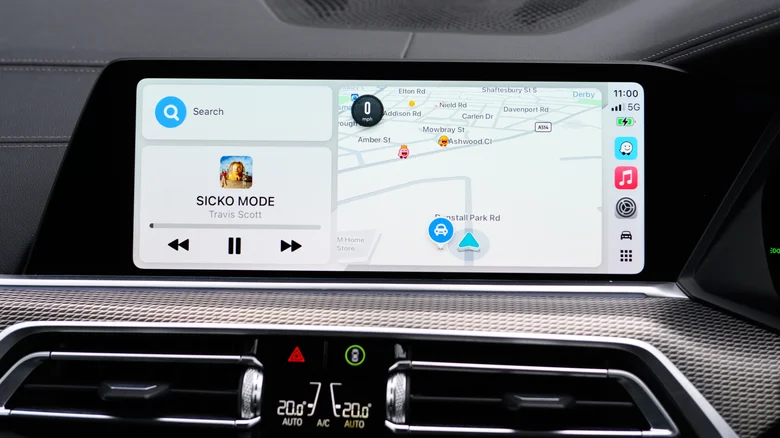
With all the furore and controversy surrounding Flock cameras, speed cameras (or speed cameras) have taken a back seat. Most of us have to deal with speed cameras (although they’re banned in some states and restricted in others), and Apple CarPlay is one way to deal with them. Although CarPlay itself doesn’t send speed camera warnings, alerts can be enabled for any navigation app you use. It goes without saying that Apple CarPlay users default to Apple Maps, but there are other equally useful alternatives like Waze and Google Maps. There is always a caveat, however. Regardless of which navigation app you use, mobile speed cameras, by definition, move around a lot. Unless someone reports the new location on a given app, you won’t receive a warning.
Mobile speed detectors (in one form or another) have been around since the first speeding arrest in the United States in 1899. A New York City taxi driver named Jacob German was caught going 12 mph in an Electrobat (almost the speed of light at the time) in a 5 mph zone. The mobile units at the time were police officers on bicycles. Fortunately, modern technology provides drivers with information as it evolves, but there is no navigation app that knows where every camera is at all times.
Make your navigation application speak
In Apple Maps, there is no camera switch to turn on or off. Camera alerts are automatic in supported regions. Waze, a CarPlay compatible navigation app, enables camera alerts by default. You also have the option to refine them. In the Waze app, open Settings > Alerts & Reports > Reports > Cameras. Each camera type has its own options for “Show on map” and “Alert while driving”. Make sure any changes you make in the Waze app take place before you connect to CarPlay, as Waze won’t apply them until the next time you log in and drive away.
Google Maps is similar but has slightly different settings. On CarPlay, tap “Report” to locate a mobile speed camera so other drivers can see it when using the app. If you want to get information from other drivers, open Google Maps in CarPlay and tap Settings > Alert Options > All Alerts.
Some navigation apps will send warning alerts without actively browsing, as long as the app is running passively in the background. Radarbot sends alerts for fixed and red light cameras via CarPlay if you have a Gold subscription. Roadar adds Flock cameras to the mix, along with other license plate readers, with speed and red light camera alerts. If you’re more concerned about Flock cameras, FlockHopper is free and also works with CarPlay.
Does Apple CarPlay tell you the speed limit?
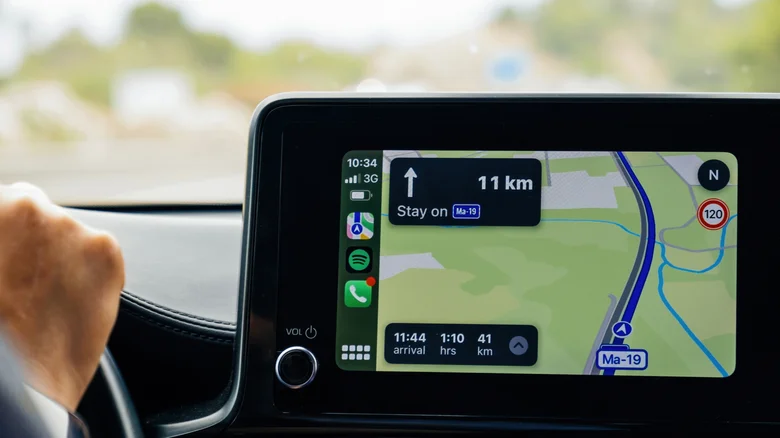
It’s possible, although it depends on the navigation app you’re using. With Apple Maps, the speed limit toggle is enabled Settings > Apps > Maps > Driving. The displayed limit will appear on the screen as you navigate. With the Waze app, make sure you are signed out of CarPlay, open Waze and tap Settings > Speedometer > Show speedometer > Set preferences > Show speed limit. Google Maps is similar to Waze, with the speed limit located in the speedometer settings. Open the Google Maps app, tap your profile picture, then tap Settings > Navigation > Driving > Speedometer.
Stock CarPlay doesn’t include a speedometer, but apps like Waze and Google Maps will display current speeds through CarPlay if you want. Google Maps and Waze will warn you if your speed increases too much, and Waze will warn you if speed limits are about to drop sharply. In response to automakers abandoning CarPlay, Apple introduced CarPlay Ultra, which displays your current speed on the instrument cluster, unlike regular CarPlay. CarPlay Ultra is fully integrated, so it’s not an informative speed display, as Google Maps makes clear about its own speedometer.
Gn tech