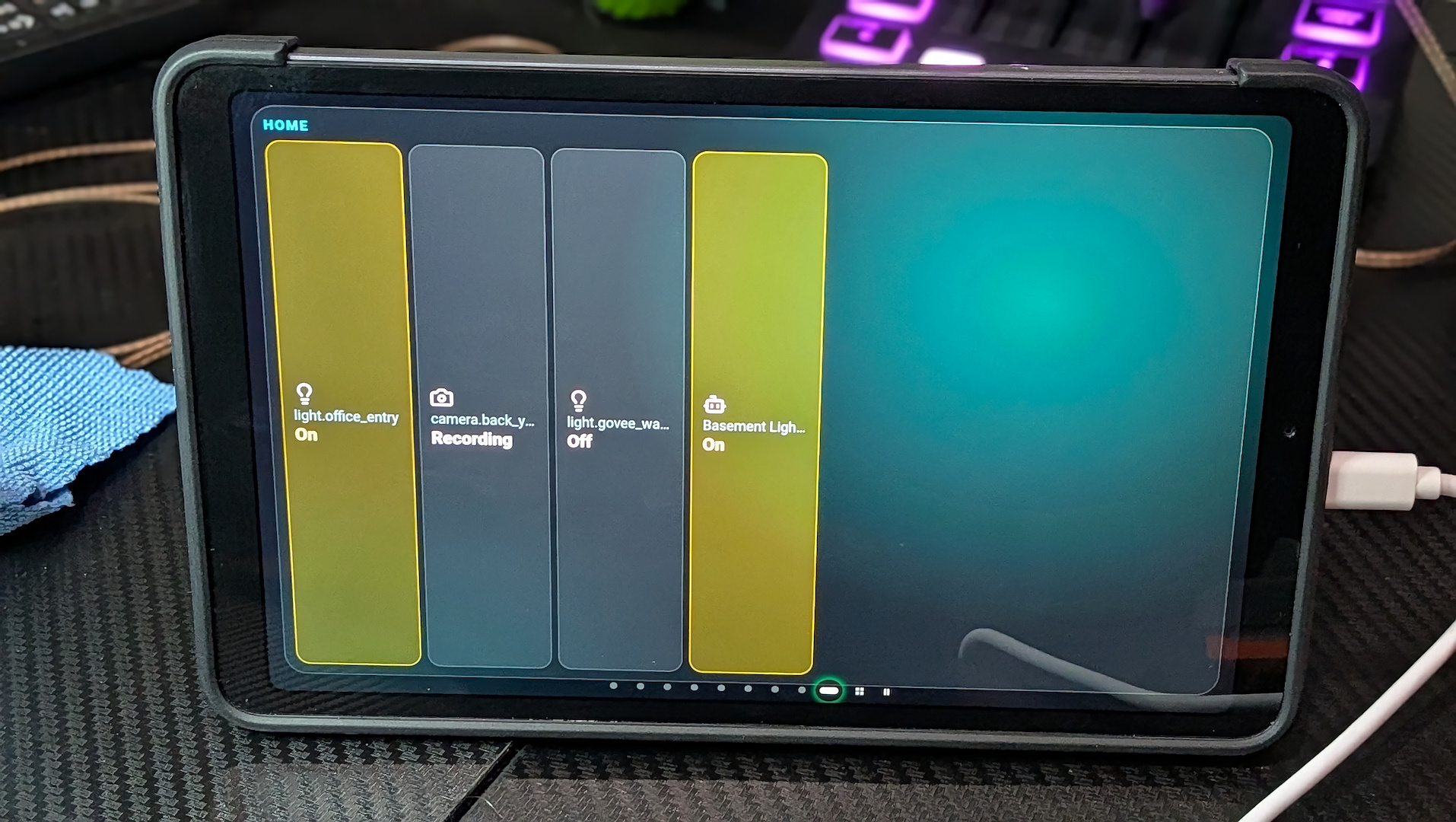
Controls Home Assistant connected devices on PhoneBox.
Credit: Nick Indge
Controls Home Assistant connected devices on PhoneBox.
Credit: Nick Indge
Setting up additional widgets is as easy as adding them to the layout from the PC’s web interface and hitting Save. As soon as I updated the items from the PC, the connected tablet immediately started reflecting the changes. I haven’t had a chance to test most of the current 131 options in the widget catalog, but the ones I tried were simple to modify and worked the first time.
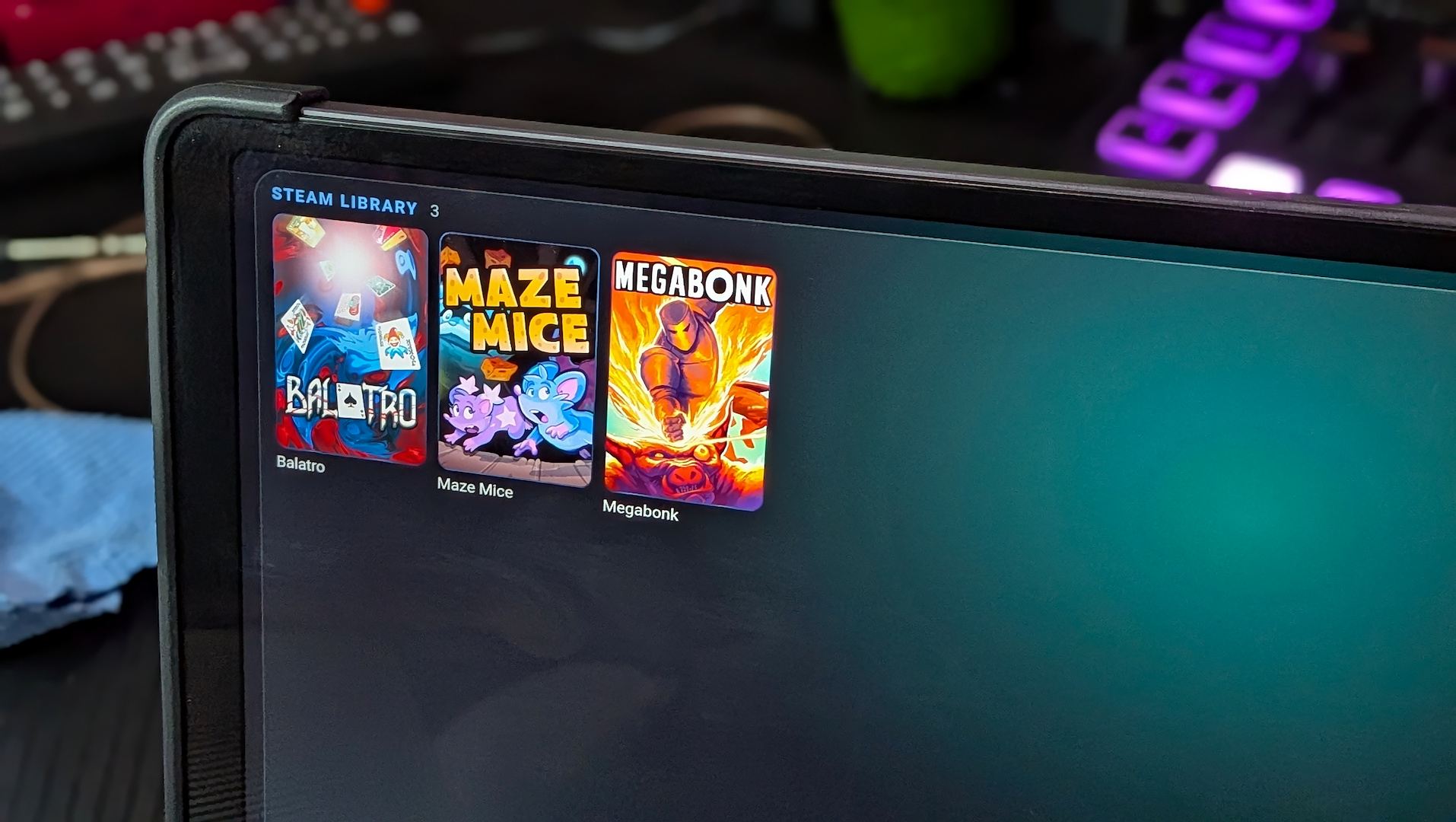
I can launch installed Steam library titles from the tablet controls.
Credit: Nick Indge
I can launch installed Steam library titles from the tablet controls.
Credit: Nick Indge
Some friction
While I haven’t had any major issues with PhoneBox, I have noticed a few annoyances along the way. Windows users should be aware that the PC companion application on this operating system is currently unsigned and should expect a SmartScreen notification when attempting to install the software.
All control settings are in the web interface rather than the phone or tablet you connect. When I started playing with PhoneBox, I noticed that it displayed my weather location as Tallinn. Nothing against the capital of Estonia, but it’s not weather news that does me much good here in the American Midwest. When I went into the widget settings to change the report location, there was nothing to find. It turns out that you need to change these settings from the general user preferences section rather than in the widget itself. This is by no means a deal breaker, but a slight hiccup for someone who was new to the software.
Connecting the Android tablet to my PC via USB was completely painless, but I never got the wireless route to work in my testing. Users are supposed to generate a QR code from the PhoneBox web interface on their PC and connect it to their device by scanning the code with their phone/tablet. Every time I tried to scan the code from my device’s camera app, the tablet refused. There’s no QR scanner built into the PhoneBox app, so if your camera app doesn’t cooperate, the documented path ends in a dead end. USB was the route I planned anyway and works great, but if you’re planning a wireless-only setup, be prepared for some possible friction. The documented stream needs your device’s camera to open the pairing link, and mine wasn’t in the mood.
Gn tech