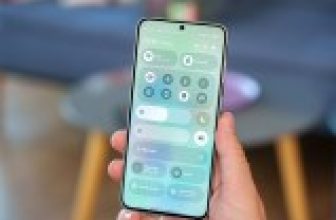


Over the past few years, Apple has improved the ability for users to customize their iPhone’s lock screen. Initially, the company only allowed changes to the wallpaper. Next, how it displayed the wallpaper when the screen went dark. Now the lock screen works with personalization widgets, allowing you to add and change many aspects of what the iPhone lock screen can do. You can change clock, wallpaper, fonts and add color filters. Suddenly there were widgets and live activities too. The latest iOS 27 update, which came with the all-new Siri AI, also included more customizations to the clock and widgets, allowing you to further personalize the iPhone.
Interestingly, Apple’s big iPhone customization overhaul began with iOS 18, which coincides with when the company should have made available all the Apple Intelligence features we’re only seeing now. The company had already started offering ways to modify the lock screen with widgets, filters and new fonts. With iOS 18, Apple added these features to the Home Screen and Control Center, while also making improvements to the Lock Screen.
After that, Apple introduced the Liquid Glass design language with iOS 26, which gave a visual overhaul to the iPhone software. Starting in 2026, Apple included improvements like animated Apple Music album covers on the lock screen, access to up to three live activities in Dynamic Island, and more.
All of these changes are a lot to keep track of. So here is a simple list of the best ways to customize your iPhone lock screen to make it look cooler.
Extend wallpaper, customize widgets and get a new clock look

If you’re running iOS 27 and have access to the new Apple Intelligence feature set thanks to the new Siri AI, one of the coolest things you can do is extend your wallpaper to the lock screen. For example, if you have the perfect photo, but it’s in landscape orientation, or you don’t want your partner’s or pet’s face to be too zoomed in on your lock screen, here’s what you can do: After long-pressing the button Lock screen > Adding/customizing a lock screenyou can zoom out the image until iPhone gets an “Extend” function. Using in-device AI, iPhone will recreate part of the image to fit the mood you’re looking for.
Once done, you can customize other parts of your lock screen. If you have an iPhone with action button and camera control features, for example, you can remove the traditional flashlight and camera widgets to something else that you might want to access more quickly, if those options are redundant for you. You can choose from a number of shortcuts, including Apple options and third-party apps. And there you have it, you have the most original lock screen possible.
Another interesting feature introduced with iOS 27 is the opposite of what previous software brought. While the lock screen clock has gotten larger over the years, you can now shrink it to give it a very minimal aesthetic appearance. Just tap the clock while editing, then at the top right of the font options is a button that looks like two rectangles. Tap it and your clock will shrink to the date area.
Focus mode toggles and AI-generated wallpapers

Another important tweak that few people actually take advantage of is Apple’s focus modes. Introduced in the 2021 iOS 15 update, Apple lets you create different lock screens, home screens, wallpapers, and filters for different parts of your day or mood. You can create one for work and another for when you’re in the car. If you’re at swim practice, you can set a different wallpaper and only allow certain people to call you, etc.
Mastering Focus mode can take some time as it has many potential combinations of its features, but the result can be very rewarding. Many people use it to avoid getting those endless social media notifications during work hours, or even to stop Trello and Slack from alerting you when you’ve been away from work for a long time. Did I mention that these focus modes can be configured by location? Because your phone knows where you are, focus modes can trigger when you arrive or leave a specific location, at a specific time, or even when Apple Intelligence understands you’re doing something else, like when you start playing a game or riding the bus.
You can find the focus modes by opening the control center and venturing inside the To focus tongue. With this you can go beyond the Do not disturb and create different filters for the day, including unique lock screen combinations that make sense for that specific time of day.
Another great feature for someone who wants a completely different lock screen wallpaper is to create AI-generated wallpapers based on your photos, or your memoji, or even just a prompt you give about a visual you imagine in your head. When personalizing a Lock screenpress the More buttonSO Picture PlaygroundChoose between a few design styles, then outline an image for a unique wallpaper. An added tip is that with iOS 27, you can even remove the Now Playing card from the lock screen, and whatever is currently playing will continue to play, bringing the ultimate minimalist design.
Gn tech