
I could tell you that the XPS Googlebook has a very nice screen, a comfortable keyboard and a very precise touchpad. I could tell you that its slim design and light weight make it easy to carry without weighing down your bag. But in reality, you could have learned all of this from my review of the standard XPS 13 with Windows 11. Everything good about this system comes from Dell’s excellent design work.
Once I started using Googlebook OS, it became immediately clear that Googlebook OS was just a mess. It’s fine for browsing the web with Chrome and accessing Google apps like Gmail and Calendar, but support for Android apps through the Google Play Store is generally disappointing. Slack only works as an Android mobile app, letting you see a single channel or direct message, but there’s no broader desktop view like you’d see on Windows or macOS. You also can’t easily react to messages and images in Slack. Instead, you have to do a long click, like you would on a normal Android phone. Evernote, on the other hand, doesn’t appear on the Googlebook Play Store at all. (And yes, I still use Evernote a lot. There are dozens of us!)
“Desktop optimized” Android apps work more like you would expect on other laptop platforms. Notability, CapCut Pad, and Luminar all offer more comprehensive apps for AI note-taking and media editing, but they’re only useful if those apps are already part of your workflow. I can’t imagine too many people will change their editing process just to find something compatible with Googlebook OS.
Using the Googlebook XPS for my typical workflow often felt like pulling teeth. Although Chrome worked well for web browsing, resizing a photo required an odyssey through several different apps until I came across Pixlr, a desktop-optimized editing app that only lets you resize an image when exporting it. Adobe Lightroom seemed to only let me resize an image by cropping it (and also bothered me about subscribing to Lightroom Premium to unlock more editing features). I eventually discovered that the standalone Viewer app offers an easy way to resize images, which isn’t present in the default Photos app.
Without support for Audacity, I had to use Lexis Audio Editor to make some edits to a podcast file, but its basic interface seemed unsuitable for more complex edits. I could just as easily have used an online editor like Audiomass (which, by the way, works great on Chromebooks). I also had to rely on the Evernote website to write this review, which required logging in every time I turned on the Googlebook XPS because the Evernote app for Android wasn’t available. I also finally ditched the Slack Android app and started using its web interface, which at least allowed me to see all my channels and direct messages.
I’m used to computers being gateways to sophisticated software and healthy developer support. Using the Googlebook XPS was like being trapped in a computer mall: hampered by a variety of small apps of varying quality. Thank goodness there are at least web apps.
It’s worth noting that Chromebooks also support Android apps. So I don’t think there’s actually a huge demand for a new Android-based computing platform.
I also wasn’t impressed with Googlebook’s other features: syncing your Android phone with a Googlebook sounds great in theory, but in reality it results in redundant notifications if the same apps are installed on both systems. You can also mirror an Android app from your phone – but again, why would you do that when you can run the app directly on the Googlebook? Given that you can already mirror Android phones and sync texts to Windows computers, I’m not sure why anyone would jump into a whole new platform just for these features.
 Devindra Hardawar for Engadget
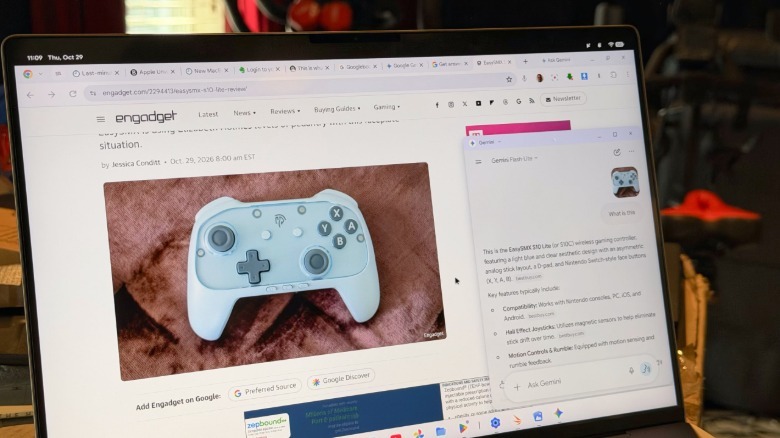
Google being Google, of course, the company has also packed as many Gemini AI features into this platform as possible. You can ask questions or edit media on the Gemini app, or wave the mouse pointer to ask the AI about things you encounter on the web or in apps. Gemini has done a decent job answering questions about the products we’ve featured on Engadget, but unless you absolutely want to rely on Google’s AI, there’s really no reason to buy an entire laptop just to have Gemini integrated into everything.
Google’s Rambler AI dictation feature, which lets you dictate text while speaking naturally, is also built into the Googlebook operating system, and in my testing it seems to work quite well. But it doesn’t show you the text while you’re speaking – it just shows a moving purple waveform, which sometimes makes it difficult to collect your thoughts or see what you were thinking before. It’s a big drawback compared to just typing or using old-fashioned dictation that was available on Android, but at least Rambler did a good job of removing the natural “ums” and “uhhs”, and it also formatted the text quite well.
Battery life is another sign that the Googlebook OS platform is very rudimentary. In the PCMark Android app benchmark, it lasted 15 hours and 15 minutes, which is what we’d expect for a Snapdragon laptop. But during normal use, I found that some apps were consuming a lot of power for no particular reason. CapCut Pad managed to drain my battery by 50% in just an hour, even though it was just sitting in the background, doing nothing. I just couldn’t trust the Googlebook XPS to last a full work day.
Gn tech